

Table of Contents
Say you sell cybersecurity, and Halcyon Bank has decided to upgrade its security. Next week you're meeting their security team. You want your demo to play out the kind of attack they worry about: someone gets in with a stolen admin password, stays quiet for five weeks, and your product catches it on day one.
Here's how to build that demo, one prompt at a time. Read along, and when you want to try it yourself, sign up free and use the same prompts on your own app.
Everything runs from the Reprise extension
You'll do all of this from the Reprise extension. It opens as a panel next to your app in Chrome, and it's the only thing you install. Your app works the way it always does, with the same screens and the same login.
Nothing you do here changes your product. Data Injection only changes what your app shows, and only in the browser tab where you turn it on. Your code, your database and everyone else's view of the app stay as they are.
The panel is also where the Reprise agent lives. You tell it what the demo should show, in plain sentences, and it makes the change on the page in front of you. It's the same panel you'll present from, so whatever you build here is ready to switch on during the call.
The agent finds the data you can change
Start by asking the agent what it can work with.
“Show me where I can change the data on this dashboard.”
The agent reads the page you have open and outlines every part of it that runs on data. Here that's the three tiles at the top, the alerts chart and the table of recent alerts.
The chart and the table on a dashboard like this often come from different places in your app, and you don't need to know where. The agent traces each one for you, so you can change any of them in plain words.
You can ask the same question on any page you demo, like a report or a detail page. It's a good habit before a big call, because you'll know what you can change before you start changing it.
Populate the dashboard with data that tells the story
Now give the agent the story you want to tell, and watch what it does with one sentence.
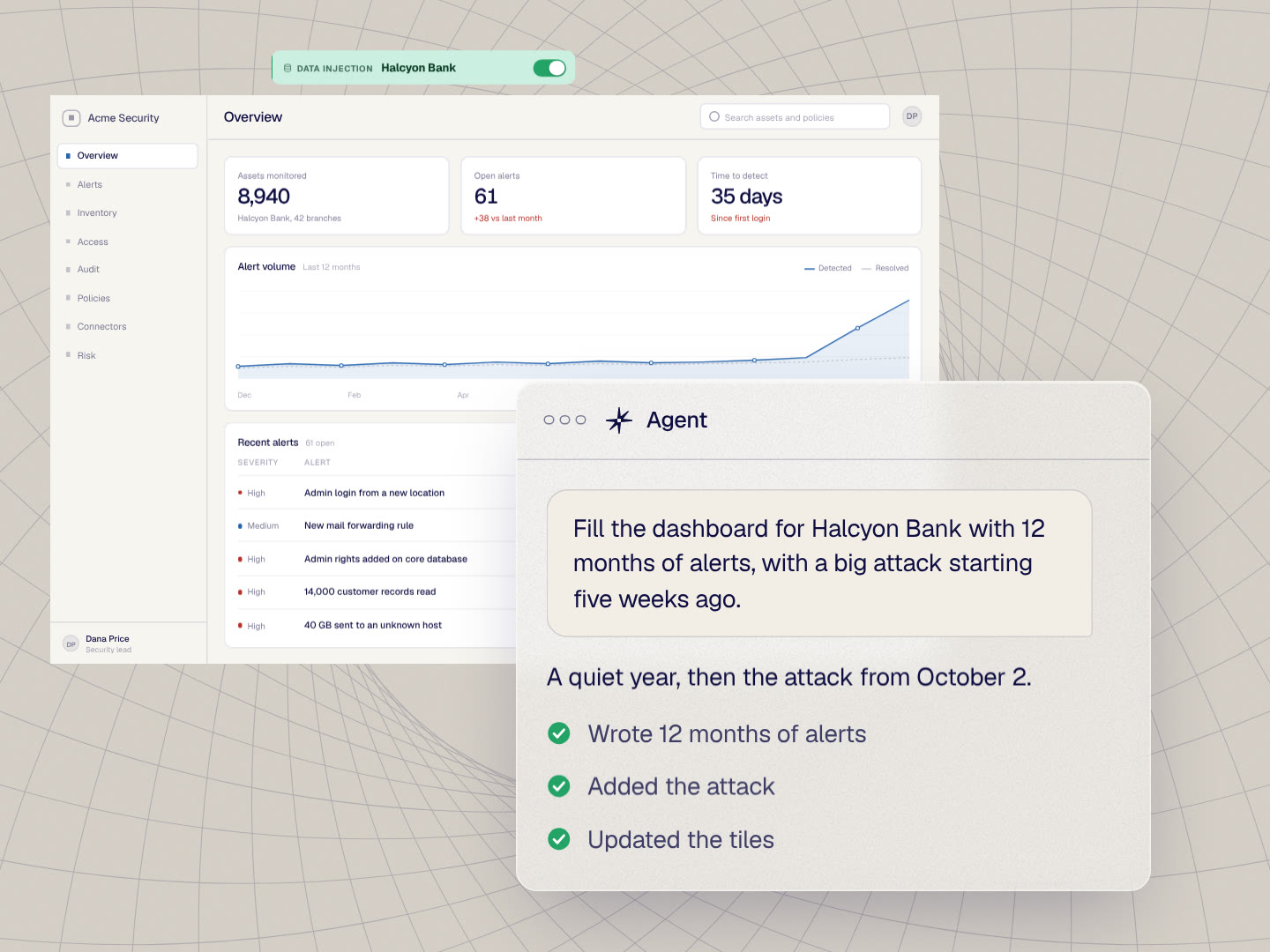
“Fill the dashboard for Halcyon Bank with 12 months of alerts, with a big attack starting five weeks ago.”
First it builds a full year of alert data for Halcyon Bank. Eleven months stay at a normal, everyday level, and the last five weeks climb sharply. That climb is the attack you'll walk the bank's team through.
Next it updates the three tiles above the chart, so assets monitored, open alerts and time to detect all match the year it just built. You didn't have to line up a single number by hand.
Everything it made is saved as a dataset named Halcyon Bank, and you'll see it in the extension with a switch next to it. Switch it on and your app shows the bank's story. Switch it off and your app is back to its own data.
If the story needs a tweak, ask for it. Move the attack to March or double the alerts, and the agent updates the same dataset.
Fill the table with the events behind the story
Next, fill the alerts table with the events behind that spike, so you can walk the bank through the attack one step at a time.
“Fill the alerts table with the attack, starting with the first login from an unfamiliar location.”
The agent fills the alerts table with the attack, one event per row, in the order it happened. The first row is dated five weeks back and the last one is this week, so the timing in the table matches the climb on the chart.
Start from the first row when you walk through it on the call. That's the moment your product catches the attack, five weeks before anyone would have noticed it otherwise.
The agent also names the systems in each row for the bank, so the security team sees the kind of assets they run.
Copy the demo for your next prospect
Halcyon Bank is now saved as a dataset, so you can switch it on for any call. The bank's data also shows up on every other page of your app that reads the same data. Click from the overview into an alert, and you're still looking at Halcyon Bank.
You can also start the next prospect's demo from this one. Ask the agent for a copy:
“Duplicate this demo for Northline Insurance and make it fit an insurance company.”
The agent copies the Halcyon Bank dataset and rewrites the names, numbers and events for an insurer. A new dataset called Northline Insurance appears in the extension, and your Halcyon Bank version stays saved for the next bank you talk to.
Questions about personalizing demo data
How do you personalize a demo?
You change the data the prospect sees: their company name, their numbers, their charts and the rows in their tables. The product stays the same, so every click still works, and the demo looks like the prospect's own business.
In Reprise, you do this with Data Injection from the Reprise extension in Chrome. You ask the Reprise agent for the data you want, and it fills the page in your live app. Text, charts, tables and images can all change.
What is demo data?
Demo data is the names, numbers and records your product shows during a demo. Good demo data looks like the prospect's business: accounts they'd recognize, trends that make sense for their industry, and no real customer details.
In Reprise, demo data is saved as datasets. The Reprise agent can build one from a short description of the prospect, and you can keep one dataset per prospect, industry or persona and switch on the one you need.
Can I add custom data to a demo without cloning my environment?
Yes. With Reprise Data Injection, your custom data goes into the live app you already demo. There's no separate demo environment to build or keep running.
The data only shows in the browser tab where you turn it on. If you also want a copy of your app that prospects can click through on their own, Application Clones can use the same dataset.
Does custom demo data change my product?
No. Injected data only changes what your app shows in your browser tab. Nothing is written to your app or its database, and your team's data stays the same.
Turn the dataset off and your app shows its own data again, so you can switch between your real product and the prospect's version during a call.
What does Reprise save?
Reprise saves the demo data you create: your datasets and any shared tables you set up. That's what lets you replay a demo, copy it for the next prospect and edit it later.
If you build with your own AI agent through the Reprise MCP, the agent can read from the tools it's connected to, like your CRM or email. Those stay where they are. Only the data you put into the demo is saved in Reprise, so use made-up names and numbers instead of real customer details.
Can I use my own AI agent?
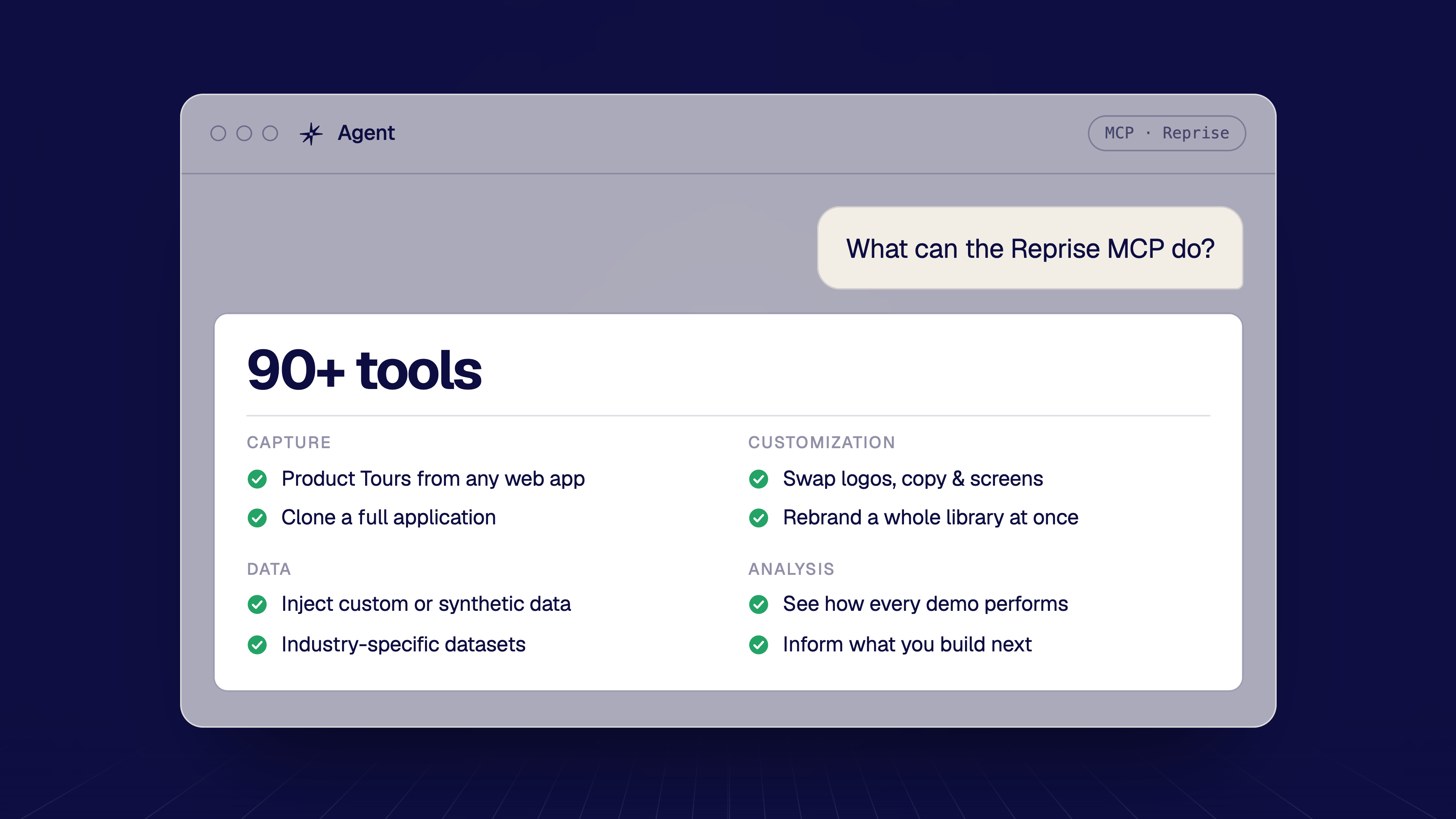
Yes. You can build the same demo with the Reprise agent or with an AI agent you already use, like Claude or ChatGPT, connected through the Reprise MCP. Every prompt in this post works with either one.
The Reprise MCP gives your agent the tools to build and edit demos in your Reprise account. While it plans the data, your agent can also use what it knows from your other tools, like your CRM or notes from the discovery call.
Can I reuse demo data across prospects?
Yes. Every dataset is saved, so you can use it on any call, copy it for a new prospect, or keep one per industry or persona.
For data that many demos share, like a list of accounts or tickets, Reprise has Universal data: one table that many datasets read from. Change a row once, and every demo that uses it shows the change the next time it plays.
Ready to try it on your own app? Sign up free and start with the first prompt.